Using “Quick Add” to Complete your Timesheet
Use "Quick Add" to Enter Time
Entering time day-by-day can be time consuming. Fortunately, there is a quick and easy way to add hours for the entire week! Using this option allows you to quickly add hours to a week without having to do a manually entry for each day.
1. When on the ‘Enter Time’ page, select “Quick Add” from the “Actions” menu towards the top right of the screen.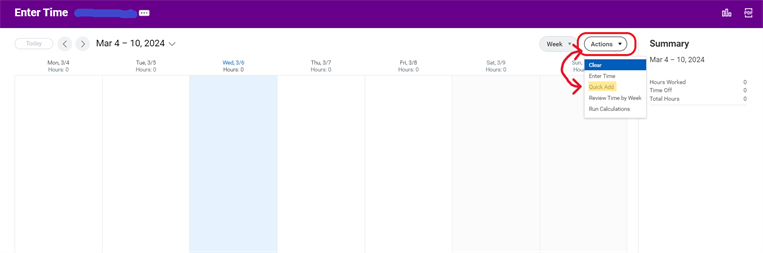
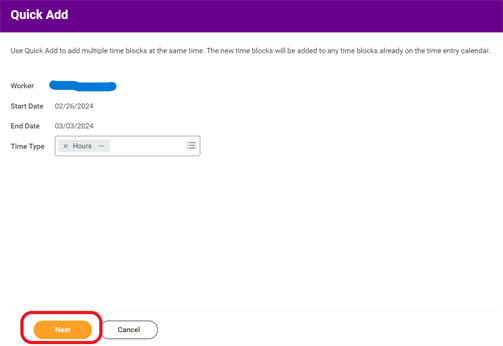
2. This will bring you to the ‘Quick Add’ screen. In the “Time Type” field, you may enter “Hours Worked” or “PTO.” This information will apply to all of the days of the week for which you enter hours.
Click “Next” to continue.
3. Enter time for any day of the week you choose.
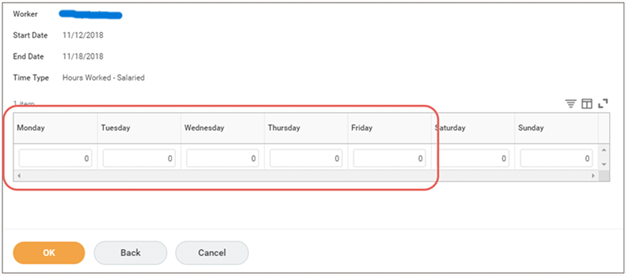
4. Once you have entered all of your hours, click OK.

5. You should now see these hours added your timesheet. Each block of hours added using ‘Quick Add’ share the same time type you selected.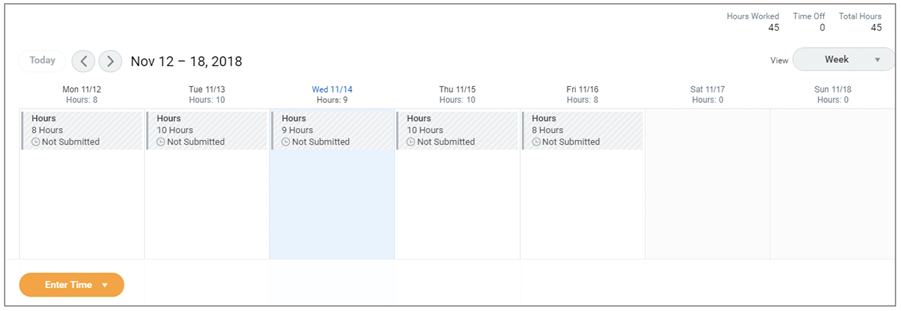
6. When you are ready to submit your timesheet for the week, click the “Submit this Week” button located on the bottom left.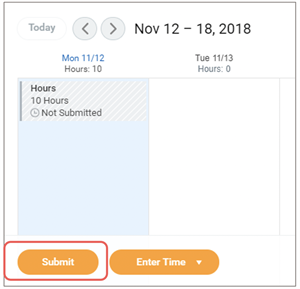
| Compliance Note: You will not be allowed to submit a timesheet with hours worked in the future. You may only submit future time if the week only contains a time off request. |
7. Click “Submit” again to confirm your hours are correct. If you need to make changes, select “Cancel” to return to the ‘Enter Time’ screen. You may also add comments here if you would like to note something on your timesheet for your approving manager.
8. Your timesheet will then go to your manager for approval. If you feel that you have made a mistake and/or need to make a change to an approved timesheet, see instructions here.
Viewed 95 times