Requesting Time Off
Request Time Off
| NOTE: You CAN select time off for a date in the future. To do this, simply choose the “Select a Week” option to enter PTO Requesting time off within Workday follows the same process as entering hours on your timesheet.for a future date. |
1. Requesting time off within Workday follows the same process as entering hours on your timesheet. Select the week you would like to request time off. If you are selecting to request time off in the future, you should choose the “Select Week” option.
2. From the ‘Enter Time’ page, click on the appropriate day(s) or click Actions --> Enter Time towards the top right of the screen.
3. In the “Time Type” field, select the appropriate type of Time Off. For details on the different types of Time Off, refer to the Total Rewards space.
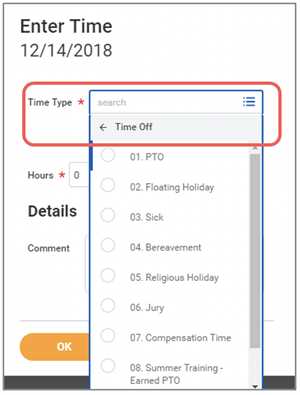
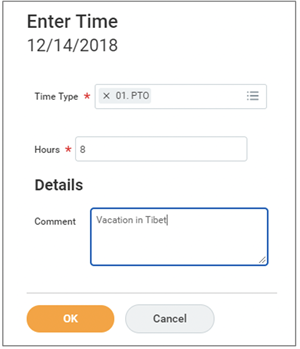
4. After selecting your Time Type, enter the number of hours and add a comment. Time off can only be entered in 1 hour increments (e.g. 3 hours, 8 hours). Note, that the red asterisk (*) indicates a required field.
Click “OK.”
5. If your time off entry is successful, you should see the following on your timesheet:
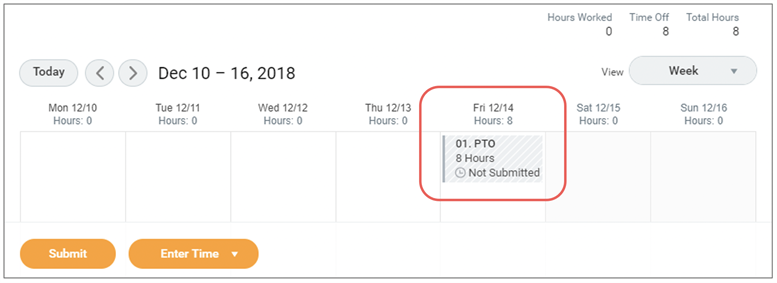
6. Click “Submit” to send the time off request to your manager for approval.
Viewed 765 times