CA & NV - Entering Time in Workday
For TFA staff in California or Nevada, entering hours is a bit different given state rules and regulations regarding tracking employee time worked. Employment laws in these states require employees to enter time in a more detailed format, as well as track when breaks are taken. This means that if you work in California or Nevada, you need to enter your time blocks for when you arrive to work, when you leave work, and for any breaks you take; this is referred to as “In” and “Out” times. Please read through our Staff Policies to verify the rules for your area.
As a non-exempt employee in CA or NV, you are entitled to a meal break allowance after 5 consecutive hours worked. If you enter 5 or more hours into a time block the system will ask you how to treat your meal break. Here are your choices.
- If your manager has asked you to work through your meal break, then you must select “NO,” in the field “Meal Break Penalty,” which will compensate you for working through your meal break.
- However, if you chose not to go on a break, then select "YES," in the field “Meal Break Penalty,” which means it was your choice to work through your break.
Enter Time in Workday: CA & NV
1. Click the Time worklet and choose “This Week,” “Last Week,” or “Select Week,” which allows you to select the date range you would like to enter information.
2. From the ‘Enter Time’ page, you can enter time by clicking inside of any day of the week, or by clicking Actions —> Enter Time towards the top right of the screen.
3. You must then complete all fields of the ‘Enter Time’ field marked with a red asterisk (*). See below for instructions on completing each field.
| 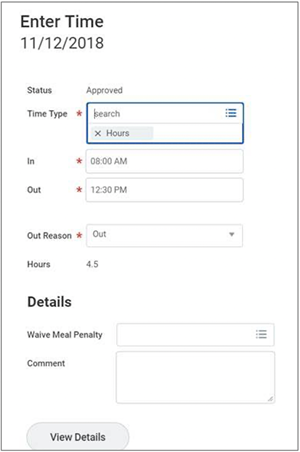 |
| NOTE: The time entry window and fields will look different depending on what you choose as a “Time Type.” Selecting PTO, Sick time, or Floating Holidays will require different information to be entered. Check out the Requesting Time Off guidance for more information on this process. |
a. You will see your first time block entered for the day. Double click under the time block to enter a second time entry.
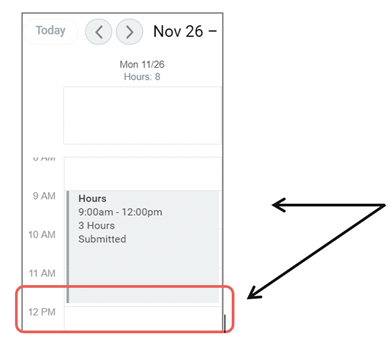 | If you took a break, you will need to enter two time blocks for the day; reflecting the break you took in between. |
4. Complete the ‘Time Entry’ form for your second block of work using the same steps above. Click “OK” when you are done.
5. When successfully completed, you will see two time entry boxes on your timesheet.
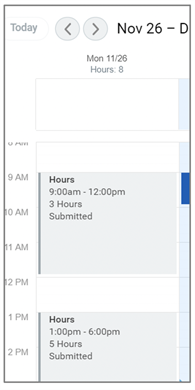
6. Repeat this process for every day of the week you worked and have hours to log. Your timesheet should look similar to this:
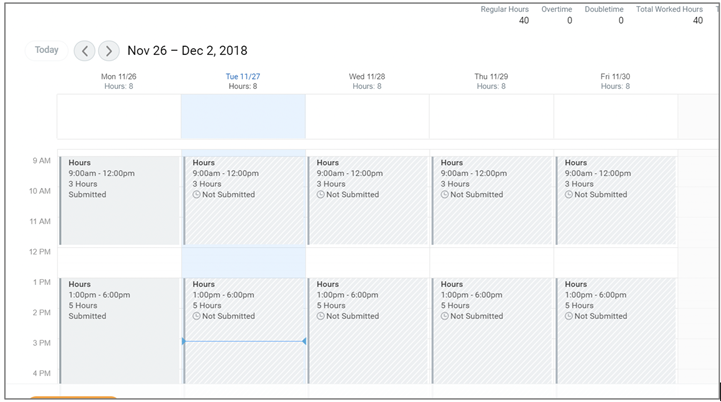
7. When you are ready to submit your timesheet for the week, click the “Submit” button located in the bottom left corner. This sends your timesheet to your manager for approval.
| Compliance Note: You will not be allowed to submit a timesheet with hours worked in the future. You may only submit future time if the week only contains a time off request. |
8. Click “Submit” again to confirm your hours are correct. If you need to make changes, select “Cancel” to return to the ‘Enter Time’ screen. You may also add comments here if you would like to note something on your timesheet for your approving manager.
Viewed 223 times