Payroll Tax Resources: Elections - Federal & State
Adding or making updates to your Federal and State Tax Elections is very easy and convenient with Workday.
Step by step Instructions are provided below; in the event you have any questions on this process, please send an email to payroll_inquiries@teachforamerica.org.
Teach For America is unable to give tax advice and recommends that you seek advice from a tax professional concerning any guidance or advice regarding the number of allowances or what status to claim on your tax forms
Instructions
- To access Workday, follow this link: https://www.myworkday.com/teachforamerica. Your login credentials are the same as your TFA network username and password.
- Once you are on your Workday landing page, click Menu, then Benefits and Pay icon.
- Under Suggested Links, select Withholding Elections.
- At the top of the screen in the Withholding Elections page, verify that your home address is correct.
- If your home address is outdated or inaccurate, you must follow these directions to update your address in Workday before you move forward
- Note: The address in Workday is current as of the day you log in to the system. If you have a future dated address in Workday, it will not show up under “Home Address” until the date arrives.
- Go to the “State Elections” tab and verify that your Home State and Work State are correct.
- If your Home State is incorrect or says “empty”, follow these directions to update your address in Workday before you move forward.
- If your Work State is incorrect or says “empty”, email the People Team Generalists to update your work address.

Navigate to the tab for the tax withholdings that you want to update and scroll to the bottom of the screen and select “Update”
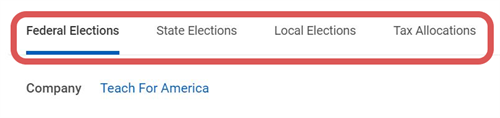
Federal Elections - all staff should complete
State Elections - only complete if it applies to you and the state(s) you live in and work in. Note: the following states do not require a state withholding elections: Alaska, Florida, Nevada, New Hampshire, South Dakota, Texas, Tennessee, Washington, Wyoming
Local Elections - only complete if you live in the following states: Delaware, Indiana, Kentucky, Michigan, Missouri, New York, Ohio, Pennsylvania
Tax Allocations - do not use
Updating Federal Tax Elections (W-4 withholding) - all staff should complete
A pop up screen will appear; add the effective date for your federal tax elections. Note this can be today’s date or a date in the future; you cannot select a date in the past.
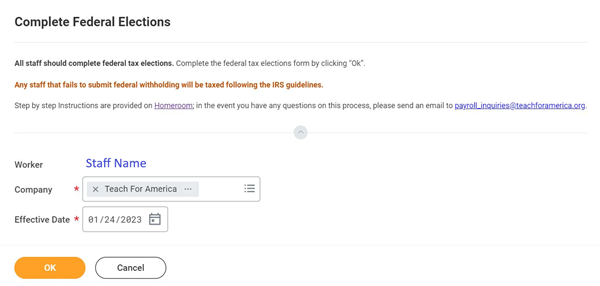
Optional: you can download the blank W-4 form by clicking on “View Blank Form”
On the W-4 Employee's Withholding Certificate screen complete the following:
Step 1: Marital Status - all staff should complete
Step 2: Multiple Jobs or Spouse Works - only complete if it applies to you
Step 3: Claim Dependents - only complete if it applies to you
Step 4:Other Adjustments - only complete if it applies to you
Step 5: Legal Notice & “I Agree” checkbox - all staff should complete
Click “Ok” when done to save your changes
Updating State Tax Elections
Do not complete if you live or work in the following states: Alaska, Florida, Nevada, New Hampshire, South Dakota, Texas, Tennessee, Washington, Wyoming
Optional: if you want to learn more about tax withholding in the state(s) you live and work in, find the guidance published by your state’s department of revenue.
A pop up screen will appear; add the effective date for your state tax elections. Note this can be today’s date or a date in the future; you cannot select a date in the past.

On the next screen:
Optional: Click on “View Blank Form” to download the state form. Note: if the form is from the prior calendar year, you can still proceed with updates and Workday will save everything for the appropriate tax year.
Complete all state tax required fields and click “Ok” when done to save your changes.
Updating Local Tax Elections
Only complete if you live in the following states: Delaware, Indiana, Kentucky, Michigan, Missouri, New York, Ohio, Pennsylvania.
Please contact Payroll Inquiries for support with local tax elections.

Do not update the “Tax Allocations” tab

After you’ve completed all your Tax Election changes, you can download a copy of your elections in Excel or a PDF in the upper right hand corner of the screen. Please download your selections and save them for your records.
Viewed 1,257 times