Managers: Managing a Direct Report’s Timesheets
Review, Approve and/or Send Back a Direct Report's Timesheet or Time Off Request
1. Go to your Workday inbox. This will allow you to see all your inbox items. Your inbox will tell you the type of action that you need to take.
 | A number next to your inbox indicates that steps are awaiting your approval, this may be a timesheet or another process. |
2. To review, approve, and/or send back a timesheet, click on the message from your staff member in your Workday inbox.
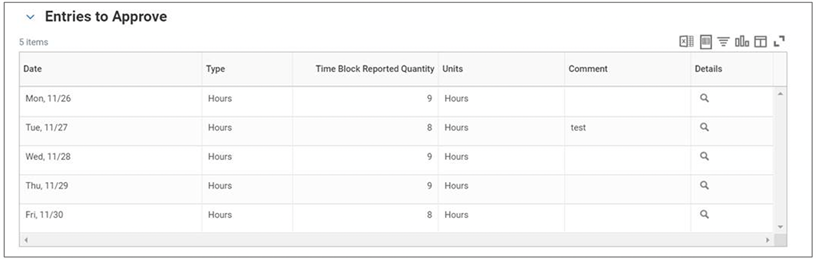
 The time sheet window will open on the right, allowing you to view the hours worked, and/or any time off requests. Under the “Details” column, click on the magnifying glass icon to see detailed information about each time entry block. This is where you will see meal breaks for CA and NV employees.
3. From the inbox screen, scroll down to the bottom to review your options, you can:
- Approve: Approve the timesheet and send for processing.
- Send Back: Use this option to send the timesheet back to the employee; be specific in how you need them to correct their hours using the comments section.
- Deny: Please do not use this option, it should only be used in rare circumstances during the amendment process.

4. If you choose to ‘Approve’ the timesheet you will receive a success message that the approval process has been successfully completed. Click “Done” to close out the timesheet process.
Viewed 72 times