Managers: Creating a Timesheet Delegation
Managers: Create a Timesheet Delegation
We allow all managers to delegate managerial timesheet responsibilities (such as approval of timesheets, or emergency submission of staff timesheets) for short-term intervals (such as vacations or leave) because we understand that an individual manager is not always able to approve their direct reports’ timesheets each week.
Delegation in these circumstances can only be to a supervisory-level delegate with first-hand knowledge of the staff member’s work. This typically will be to the direct manager, the manager’s manager, or a peer supervisor within the same direct reporting structure. Workday will automatically permit the delegation request to a direct manager or the manager’s manager. All other delegation requests will be routed to the People Team for review prior to assignment.
Requesting a delegate permits another staff member to have access and certain security rights over their direct report’s timesheets, including:
- Approving submitted time
- Entering time on their behalf, and
- Submitting on their behalf (in the rare cases the last two may be necessary)
| Delegates can access a delegator's direct reports' timesheets by using the ‘switch role’ function within their My Account settings (located under the Profile button at the top right of the Workday window). | 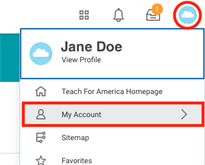 |
Create a Timesheet Delegation
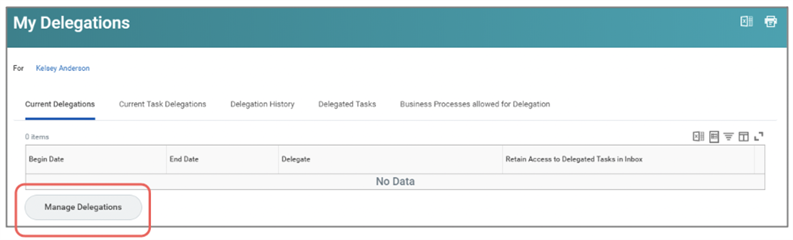
1. Type “Delegations” into the Search bar. Select the “My Delegations” option that appears.

2. This will bring you to the “Delegations” page, where you can see current delegations and other relevant information.
3. Click on the “Manage Delegations” button to set up a new timesheets delegation.
 4. On the next page, you will be able to select “New” and create a new delegation set-up. Click the “+” icon to create a new timesheets delegation.
5. You will then need to complete all of the fields that populate when choosing to add a new delegation. See the breakdown below for instructions on complete these fields.

- Begin/End Date: Enter the beginning date and end date of your timesheet delegation. This is when you would like the delegation to start and stop.
- Delegate: Choose an individual to delegate from the drop down icon. This is the individual to whom you will be delegating time entry and approval.
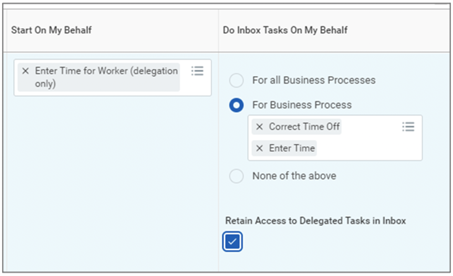
- Start on My Behalf: Type in "Enter Time" and press tab, or choose from the drop down icon to add the "Enter Time" business process you are delegating.
- Do Inbox Tasks On My Behalf: Here you should use the drop down icon to choose the "Enter Time" business process you are delegating. You must also choose the “Correct Time Off” business process when delegating. See the image below for an example of what your delegation should look like.
- Retain Access to Delegated Tasks in Inbox: Select this option, as you will want to retain access to your inbox tasks and business processes!
6. Once you have completed each field and are ready to create the delegation, click the “Submit” button to send for final approval and start the delegation!
| NOTE: When you are delegating to your manager or your manager’s manager, the approval of your delegation will be automatic. However, if you try to assign someone who is not in your management chain, the request for delegation will be reviewed centrally by the People Team Generalists to ensure compliance. |
Viewed 965 times