Making Changes to your Time Off Requests
Change a Time Off Request
Correct a Time Off Request BEFORE It Has Been Approved
- Once you are on your Workday landing page, click the Menu at the upper left. Select the Time icon.
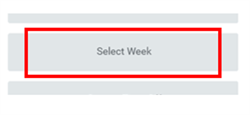
- Choose the Select Week option and select the week that you entered time off for and that you need to correct.
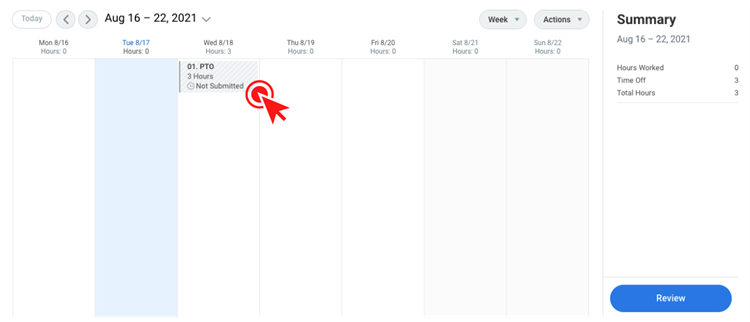
- Double click on the time block(s) you would like to make changes to.
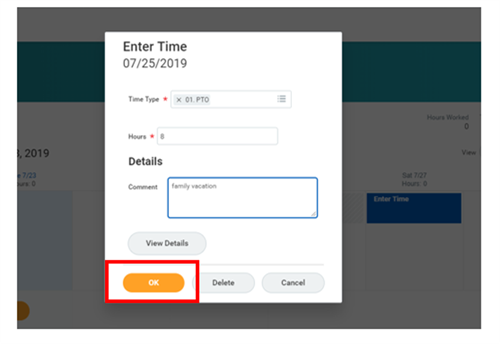
- This will open the 'Enter Time' box. Make your adjustments and click OK.
- When you make a change to your time off request and/or timesheet, you must re-submit the timesheet for approval. Upon making any changes to your future time off requests, click Review, then Submit.
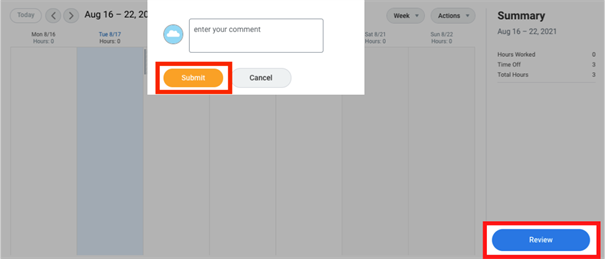
- Your timesheet will now automatically go to your manager for approval.
Correct a Time Off Request AFTER It Has Been Approved
- Once you are on your Workday landing page, click the Menu at the upper left. Select the Time icon.
- Choose the Manage Absence option.
- On the next screen, you will see a calendar view. Navigate to the month/day for the approved time off that you need to correct. Here you can make corrections to the time off amount*. Note that PTO and sick time may be entered in 1 hour increments. Other time off types (e.g. Jury duty) can only be entered in blocks of 4 or 8.
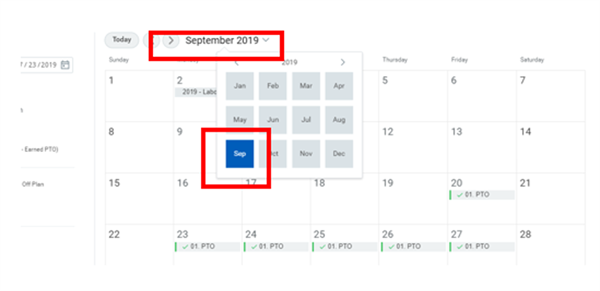
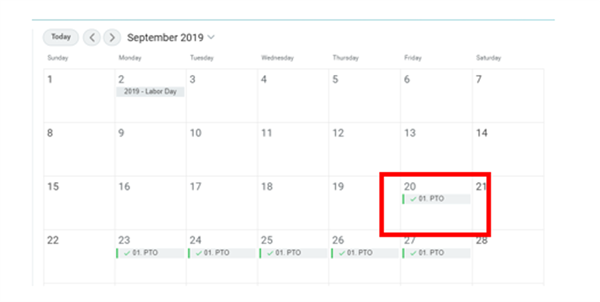 *You may only adjust the number of time off hours. If you need to CANCEL a time off request you must completely zero out your approved time-off by clicking the minus symbol in the pop-up window labeled "Correct Time Off," and submit the change. If you need to adjust the time off TYPE (e.g., changing 8 hours of PTO to 8 hours of sick time), zero out your entered and approved time-off by clicking the minus symbol in the pop-up window labeled "Correct Time Off," submit the change, and then submit a NEW PTO request.
Whatever the scenario, your manager will need to approve your changes. - Once you have made your corrections to your time off request, you must submit them for re-approval by your manager. When you've made all of your changes*, scroll down to the bottom of the Correct Time Off screen and click Submit. *Remember, you may only adjust hours of time off here, not the type of time off.
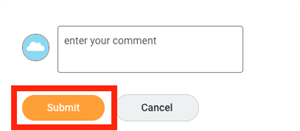
- Upon re-submission, your timesheet will go to your manager for re-approval. Once the request is reviewed and approved, it will be reflected on your timesheet.
Viewed 328 times